Open Outlook (desktop app or Outlook Web).
If using Outlook Web:
Go to https://outlook.office.com.
Click on your profile icon (top right corner).
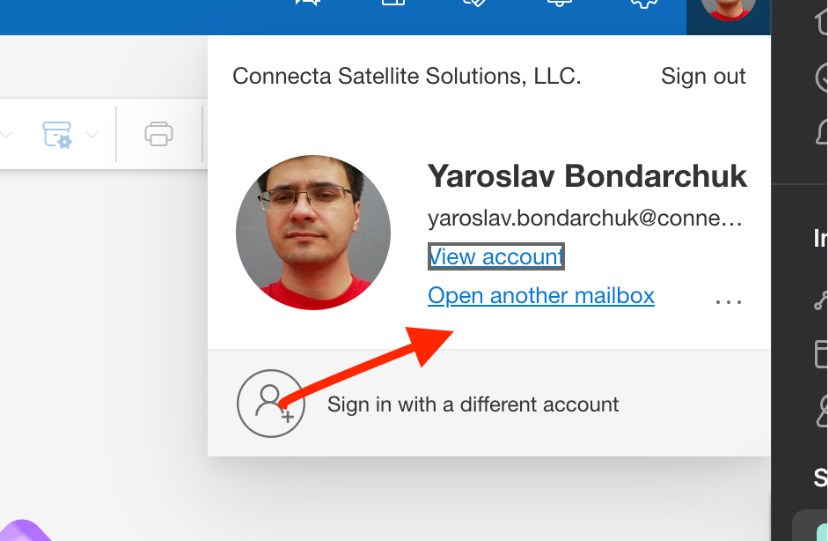
Select Open another mailbox.
Enter the name or email of the shared mailbox (cdrs@satellitephonestore.com)
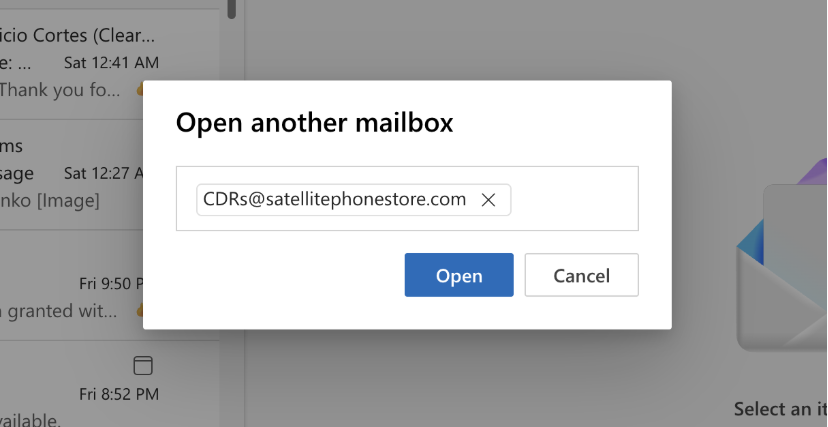
The shared mailbox will open in a new tab.
If using the Outlook desktop app:
The shared mailbox should already appear in your folder list (left-hand panel).
Expand the mailbox to see its folders (Inbox, Sent Items, etc.).
Navigate to the Inbox of the shared mailbox.
Search or filter emails for CDR reports (you can use keywords like CDR or by sender).

Open the latest report email and download or review the attached file(s).
Verify that the CDR data is complete and corresponds to the expected time period.
Was this article helpful?
That’s Great!
Thank you for your feedback
Sorry! We couldn't be helpful
Thank you for your feedback
Feedback sent
We appreciate your effort and will try to fix the article