Logging Into ConnectWise
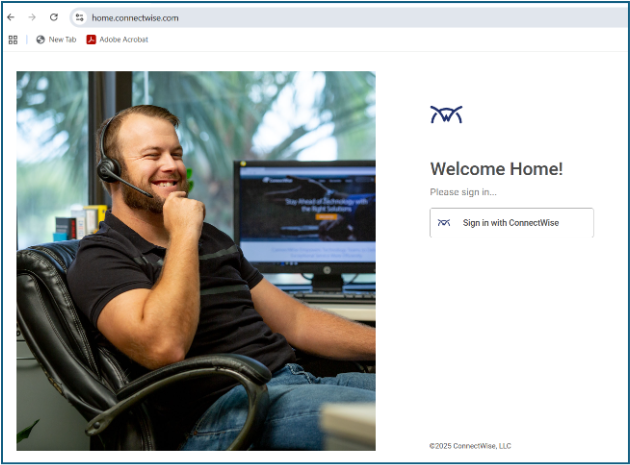
Go to the ConnectWise Home page. https://home.connectwise.com .
Click “Sign in with ConnectWise.”
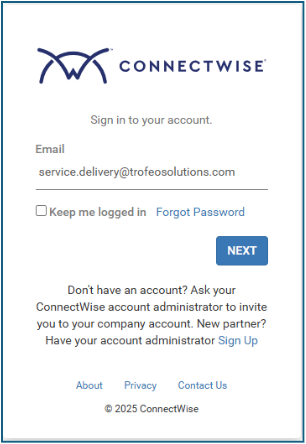
Enter your Trofeo email address.
Click “Next.”
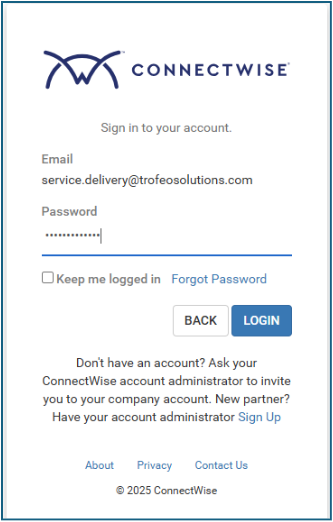
Enter your password.
Click “Login.”
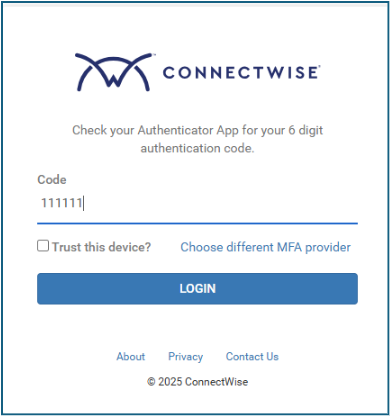
Enter your authenticator code. You should receive this in your Trofeo email mailbox.
You will be logged into ConnectWise.
Launching the PSA Application
The only application you will use is PSA. You will see the option for it in the lower right corner of the page.
Hover your cursor over PSA, and the option to “Launch” will appear. Click “Launch.”
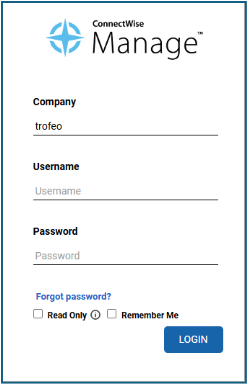
You will see the login page for the PSA application.
Enter your username for the application.
NOTE: Your username is different than your Trofeo email. The naming convention is Support-xxx where xxx is your 3-letter email address account name.
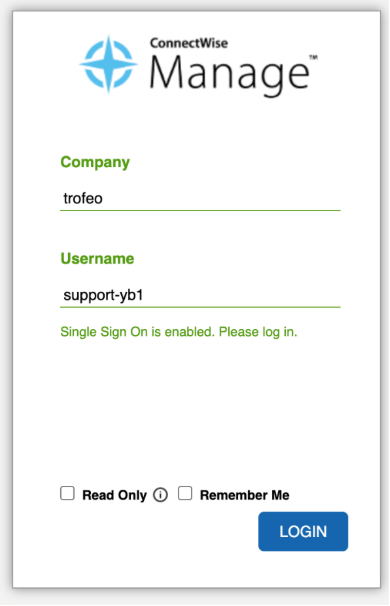
As soon as you type in your username and tab to the password field, the application should detect that single sign-on is enabled and remove the password field.
Click “Login.”
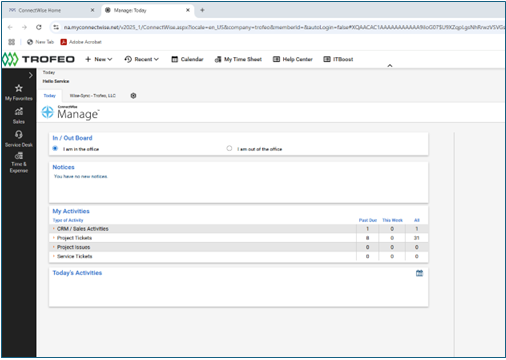
The PSA home page (also called Manage) opens in a new browser window.
Monitoring Service Tickets
Azure health (NOC) and Defender (SOC) alerts are forwarded to ConnectWise and create tickets.
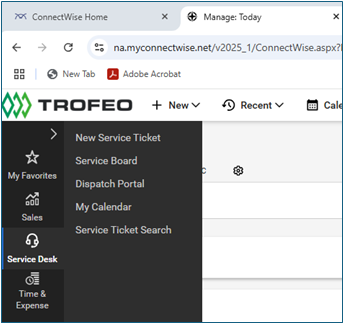
Your work will be focused in the Service Desk module (seen in the left navigation area).
Hover your cursor over Service Desk, and you will see the modules menu options (available to you).
Click on “Service Board.”
The Service Board page shows all tickets in all Service Boards you have access to see.
NOTE: A Service Board is like a queue. We can set up notification and workflows specific to a Service Board. You will have access to most of the queues listed in the screen shot below.
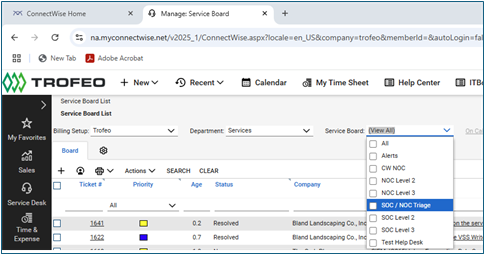
If you are focusing on tickets in only one service board (queue), you can filter it by selecting it in the Service Board filter near the type of the page, or you can customize your list and add the “Service Board” field as a column in your list view and filter within the list.
NOTE: To customize your list, look for the gear icon on the upper right section of the Board tab on the page. You can make multiple changes here:
Set the page to refresh results at certain intervals.
Set the page to automatically load search results when you open the screen.
Refresh the list on the page when you return to the screen.
Hide or show service ticket columns.
Re-arrange the column sequence in the list view. (You can also drag and drop to move columns.)
Reviewing / Resolving a Ticket
To open a ticket, click the ticket number.
Review the ticket.
If there is work to perform on the ticket, make the following updates.
Set Status = In Progress
Set Ticket Owner to you.
Click the “Save” icon.
When you have resolved a ticket, make the following updates.
Set Status = Resolved
Go to the New Note pod and add a new Discussion note. Save the note.
Save the ticket.
Escalating Tickets
If unable to resolve a ticket, please escalate to the next level.
NOTE: Do not change the service board. There is workflow automation that performs that change.
Service Board | Purpose | Escalation Steps |
SOC / NOC Triage | All alerts are submitted to this service board for review and SOC / NOC Level 1 triage. | Add a note indicating what work was performed.
If escalating in SOC: Set status to “Escalate to SOC Level 2”. Save and close the ticket.
If escalating in NOC: Set status to “Escalate to NOC Level 2”. Save and close the ticket. |
NOC Level 2 | NOC Level 2 reviews and resolves alerts.
Level 2 escalates if unable to resolve the issue. | Add a note indicating what work was performed.
Set status to “Escalate to NOC Level 3”. Save and close the ticket. |
NOC Level 3 | Trofeo handles this level. |
|
SOC Level 2 | SOC Level 2 reviews and resolves alerts.
Level 2 escalates if unable to resolve the issue. | Add a note indicating what work was performed.
Set status to “Escalate to SOC Level 3”. Save and close the ticket. |
SOC Level 3 | Trofeo handles this level. |
|
Closing Tickets
At the current time, Trofeo will review tickets in Resolved status and close them.
Was this article helpful?
That’s Great!
Thank you for your feedback
Sorry! We couldn't be helpful
Thank you for your feedback
Feedback sent
We appreciate your effort and will try to fix the article